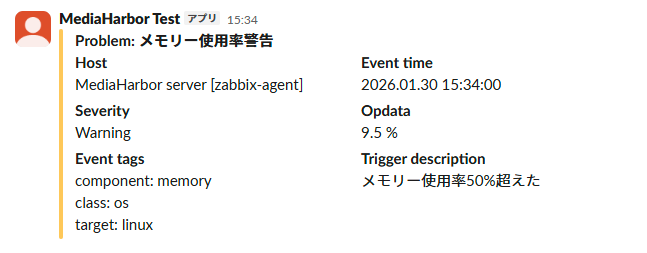
Server Metrics Slack Notification Setup Using Zabbix
This document describes how to configure Slack notifications for server metrics using Zabbix, which is set up together with MediaHarbor.
Requirements
- You must have permissions to create and add apps to your Slack workspace.
Accessing Zabbix
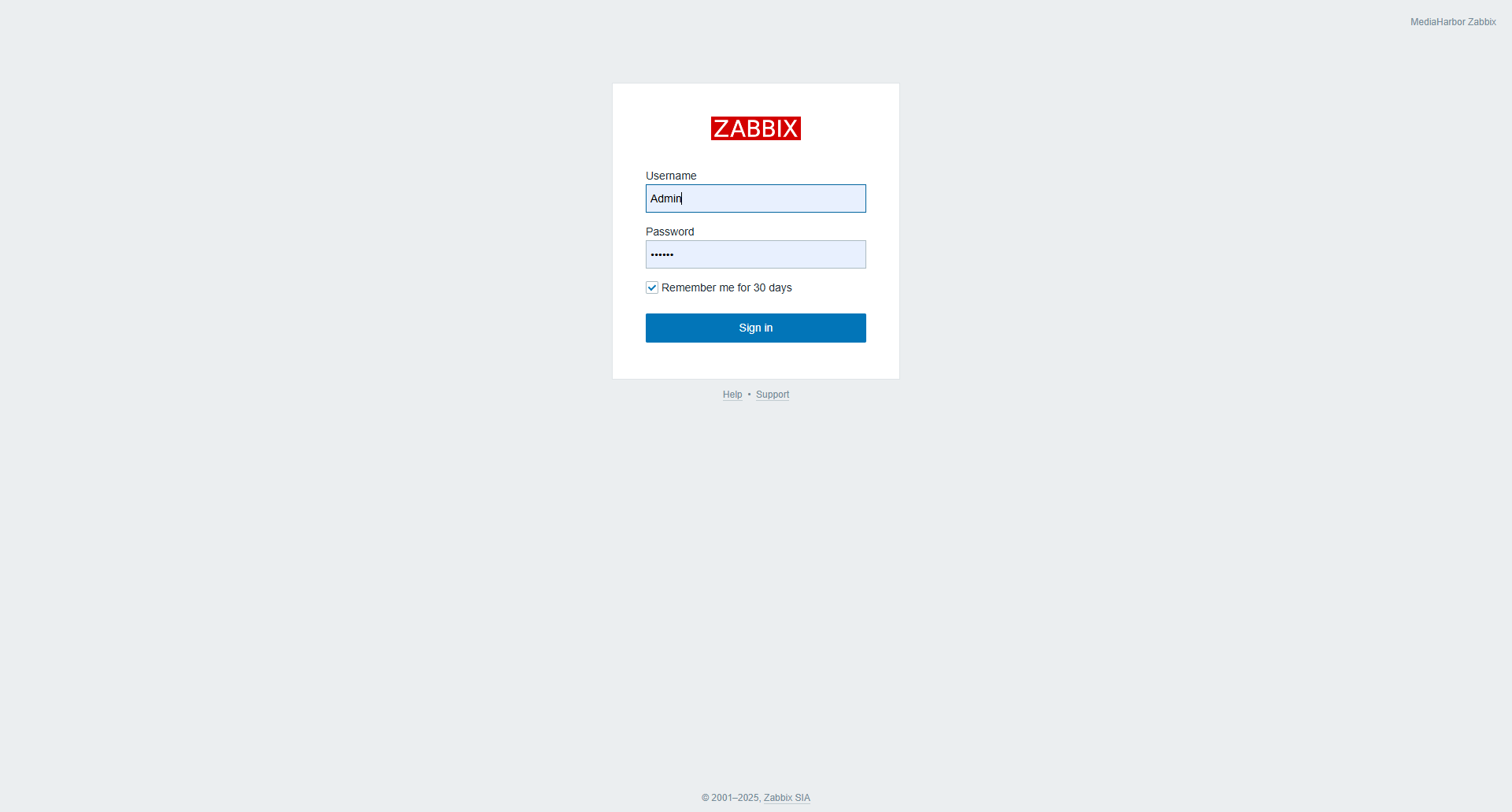
Access Zabbix on the server where you installed MediaHarbor at http://<server-ip>/zabbix.
- Username:
Admin - Password:
Zabbix
1. Configuring Triggers
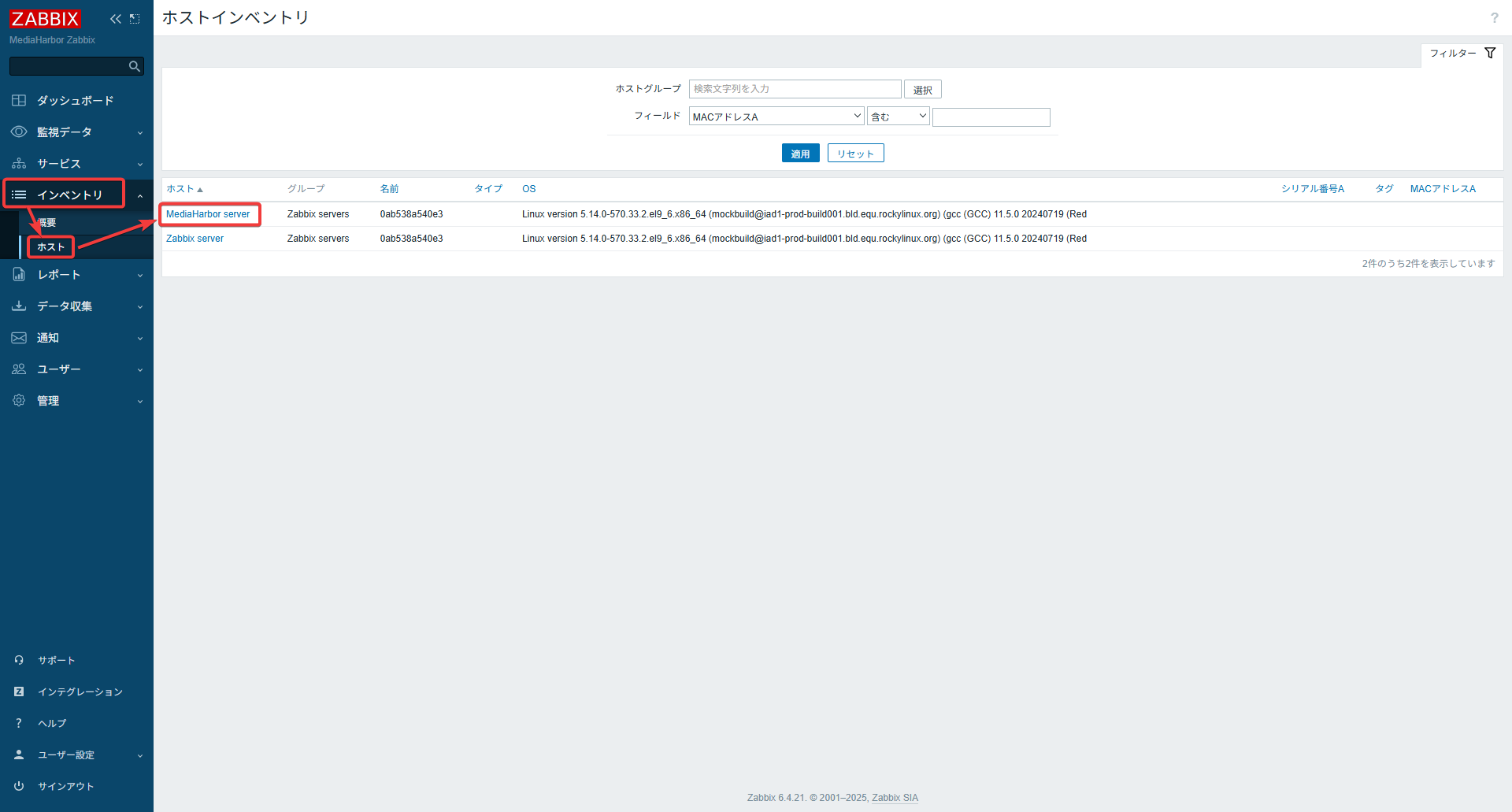
Open Inventory > Hosts > MediaHarbor server.
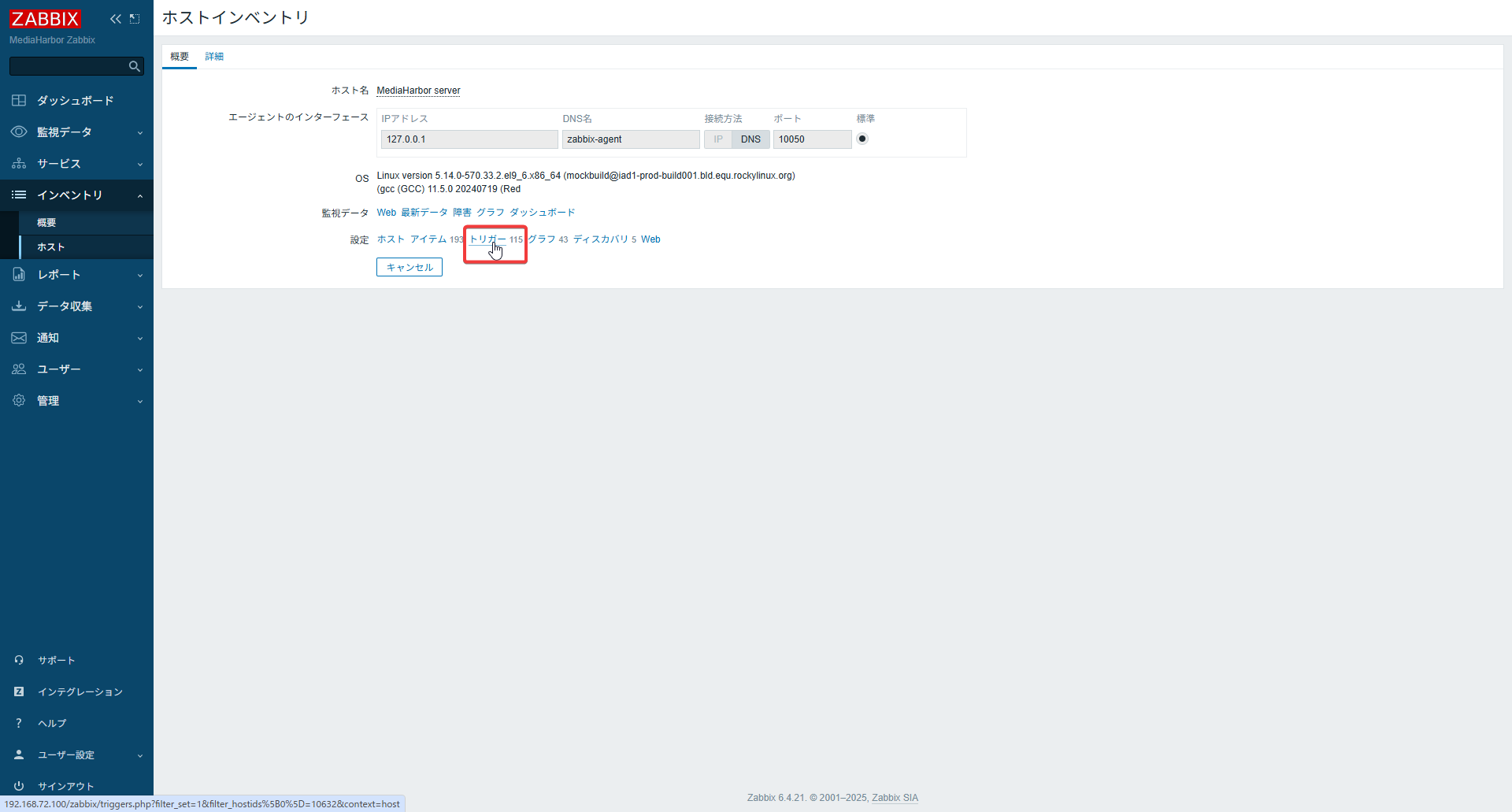
Open Triggers.
Click Create trigger.
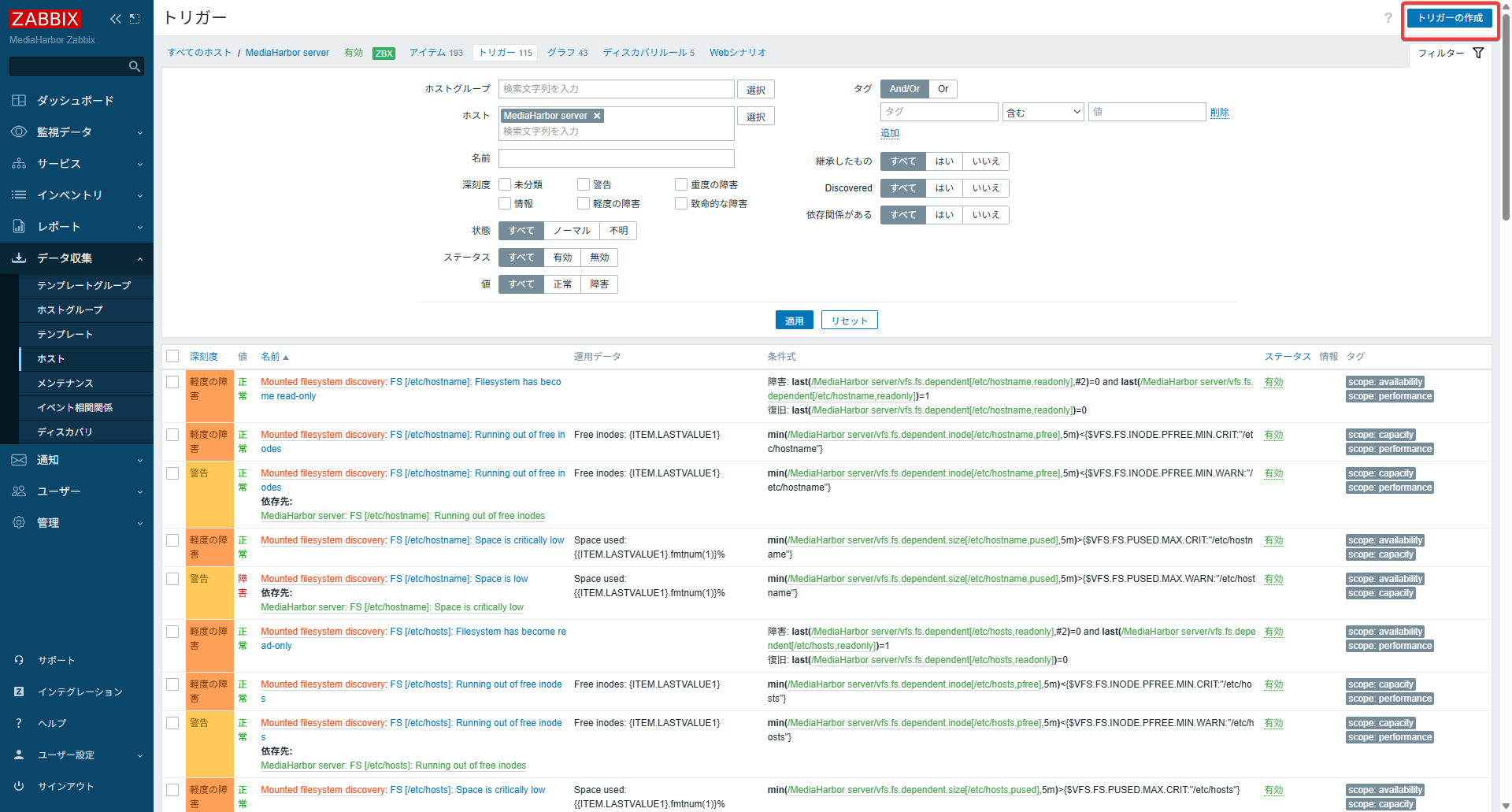
Set the monitoring thresholds here.
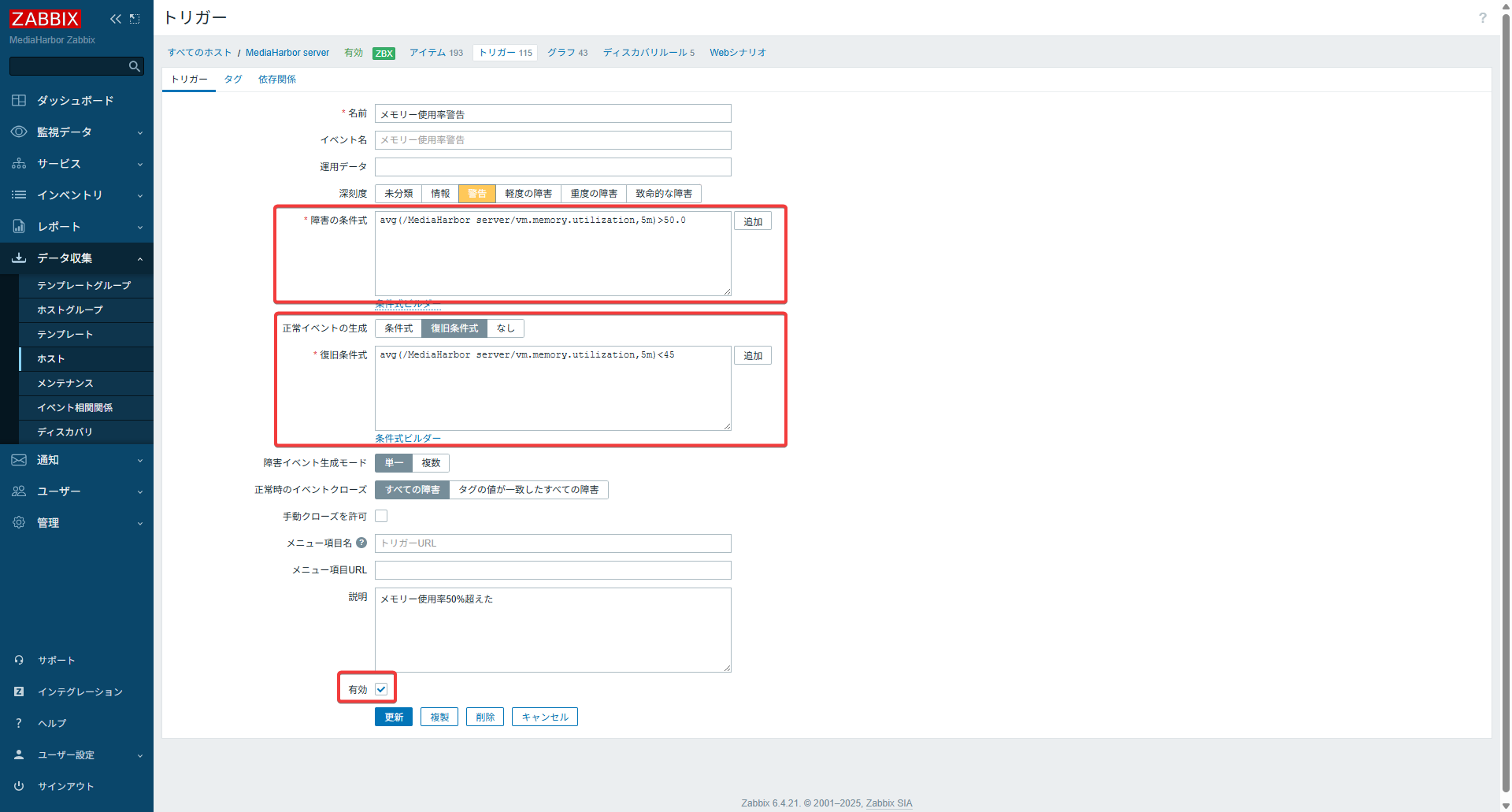
Trigger Settings
- You can set severity, threshold values, etc., as you prefer.
Example: Problem Expression
If the 5-minute average memory utilization exceeds 50%, it is considered a problem.
avg(/MediaHarbor server/vm.memory.utilization,5m) > 50
Example: Recovery Expression
If the 5-minute average memory utilization falls below 45%, it is considered recovered.
avg(/MediaHarbor server/vm.memory.utilization,5m) < 45
3. Creating a Slack App (Bot)
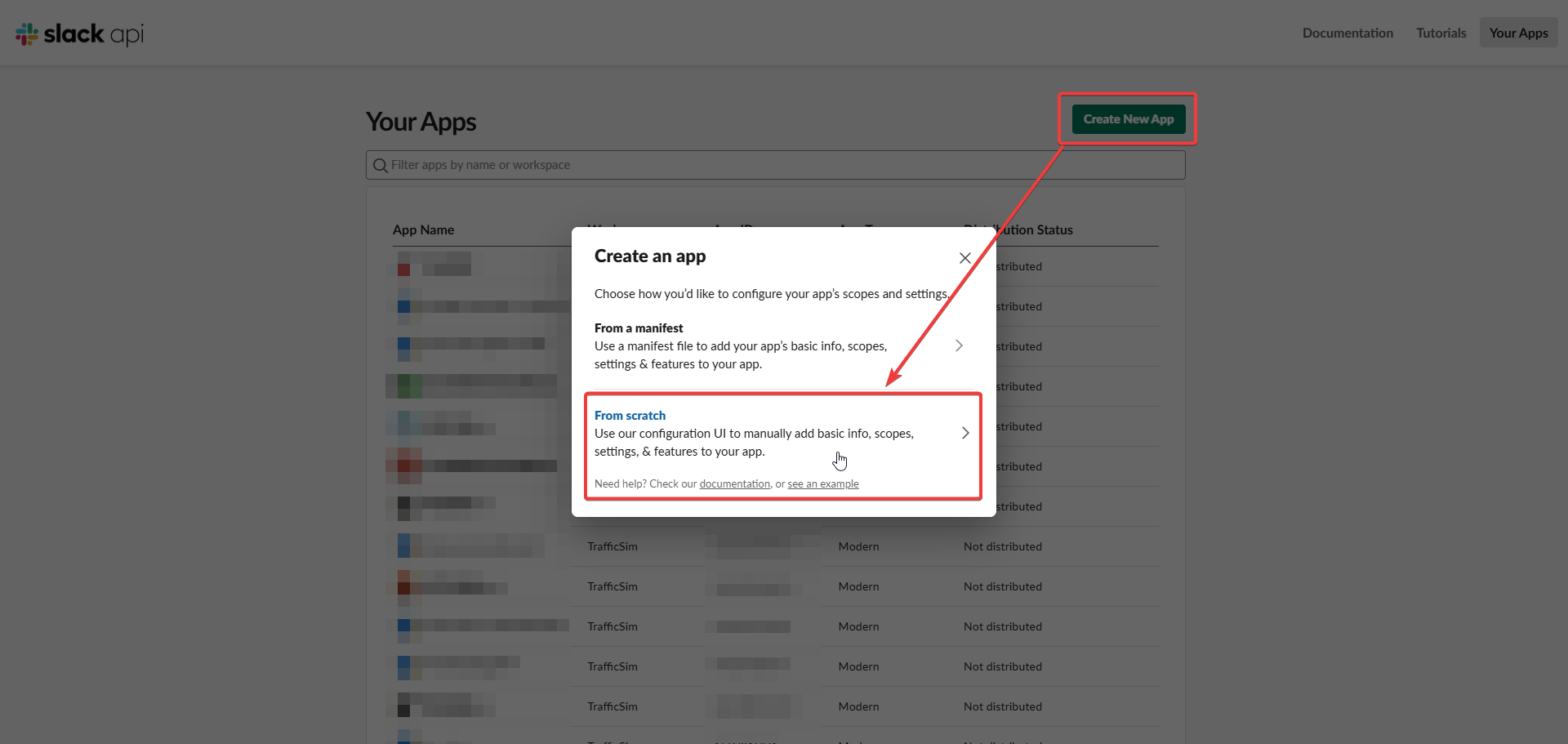
- Visit Slack API (https://api.slack.com/apps)
- Click “Create New App” > “From scratch”
- Choose an app name and select your workspace
- Go to OAuth & Permissions → Bot Token Scopes and add:
chat:writechat:write.public
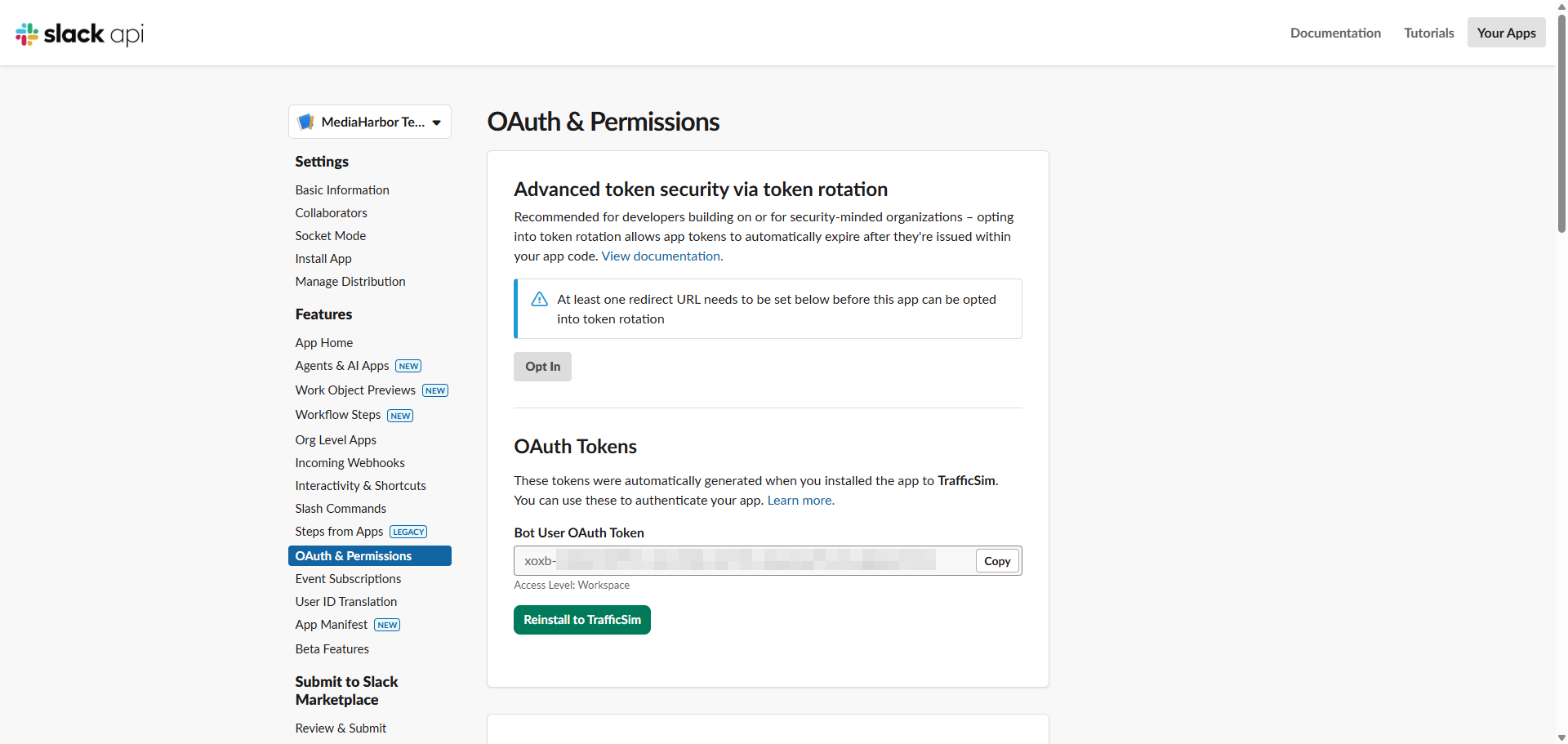
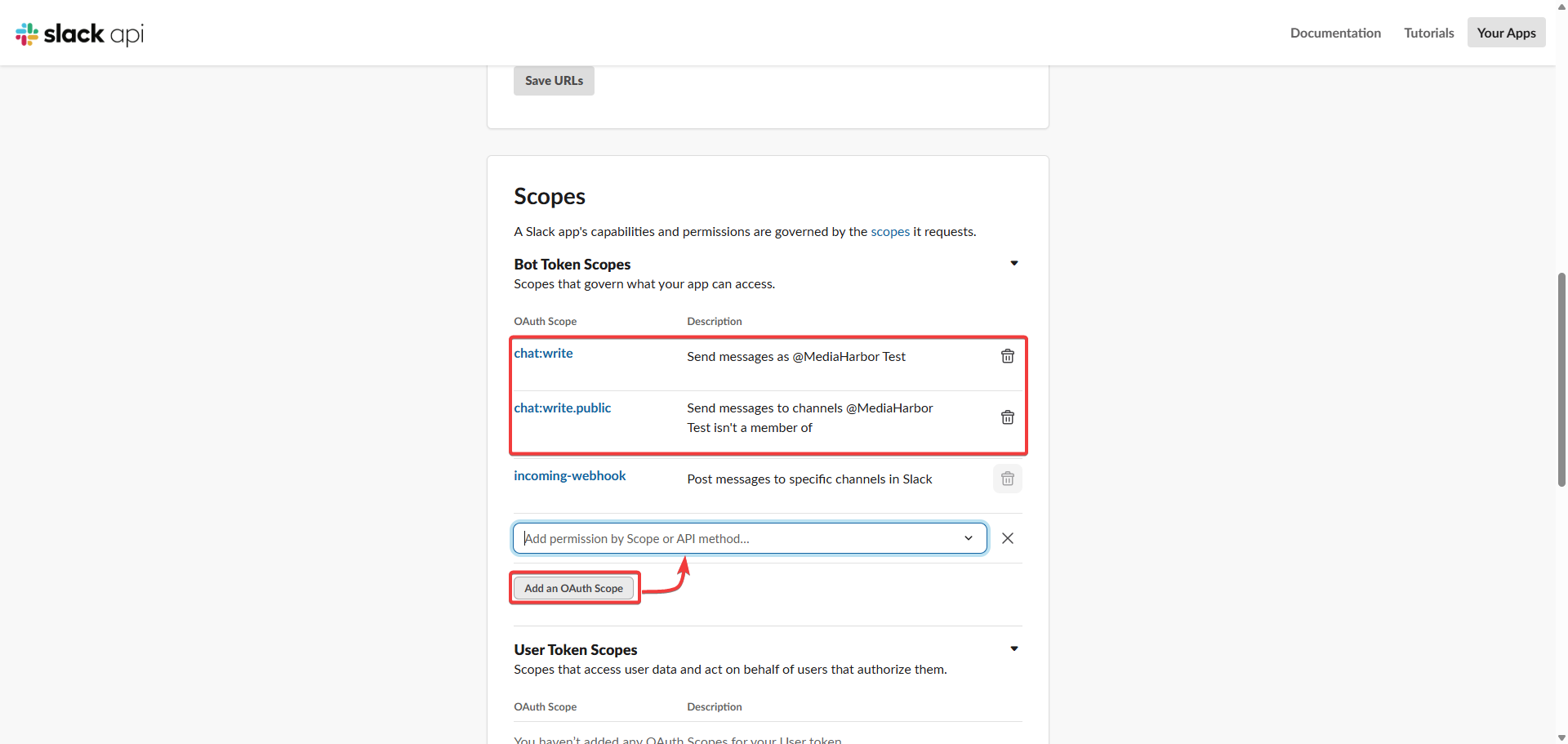
- Click Install App to Workspace or Reinstall App to Workspace
- Copy the Bot User OAuth Token (starts with
xoxb-...)
Important: If the chat:write and chat:write.public permissions are not granted, notifications will fail with a missing_scope error.
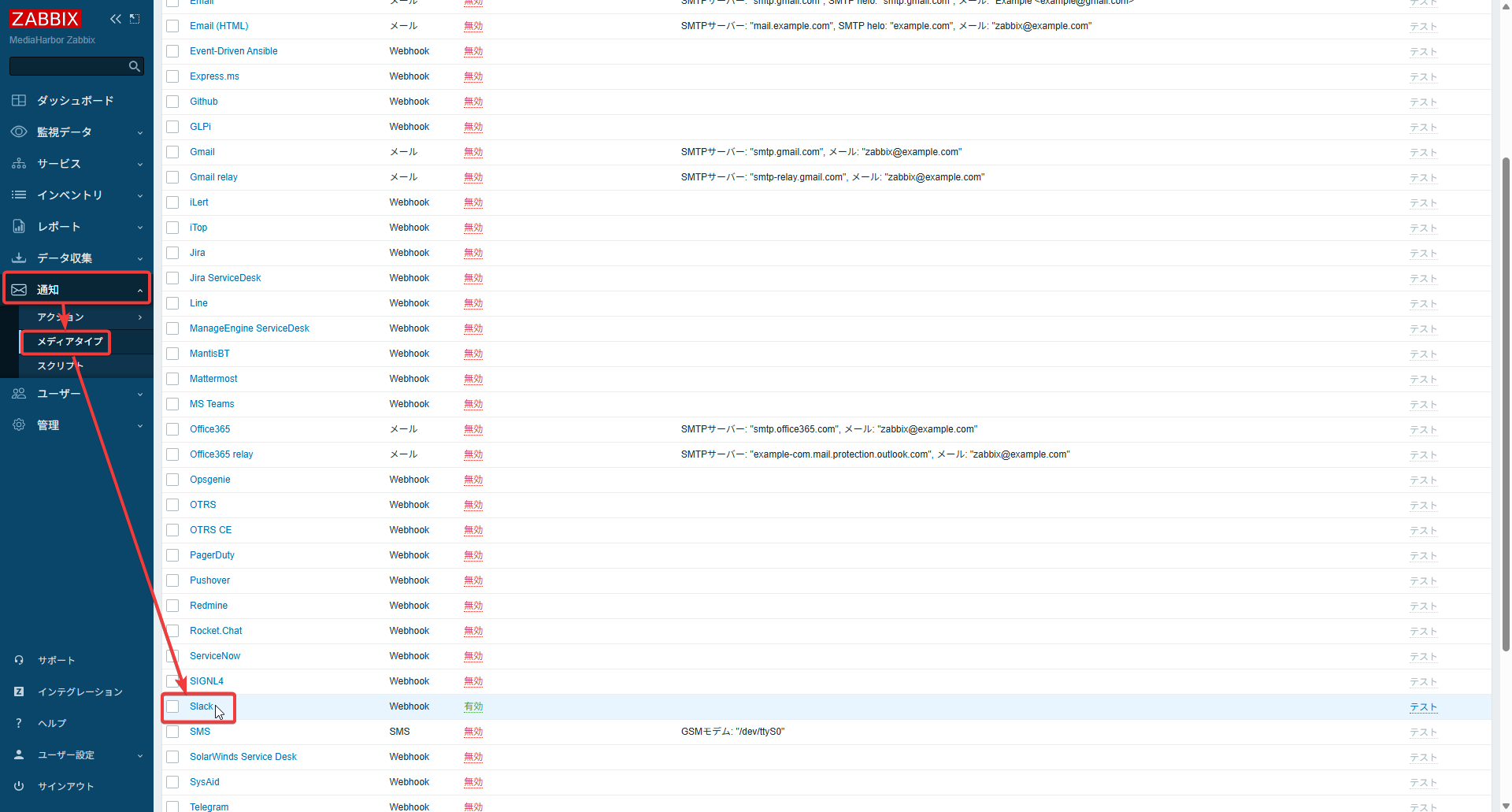
4. Media Type Settings (Destination Settings)
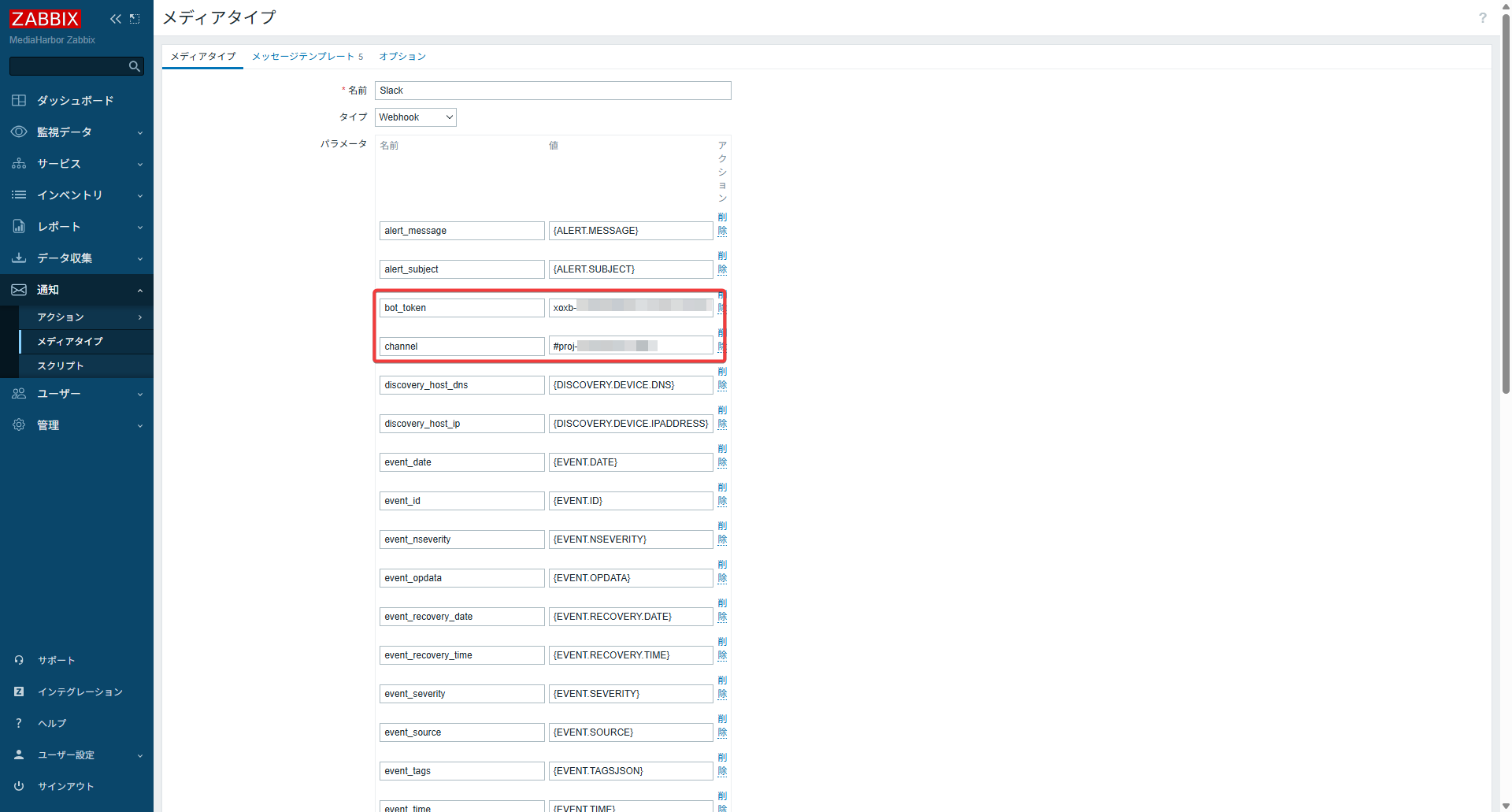
Open Administration → Media types → Slack
- bot_token: Set the Slack bot token you obtained, starting with
xoxb-... - channel:
#name-of-notification-channel
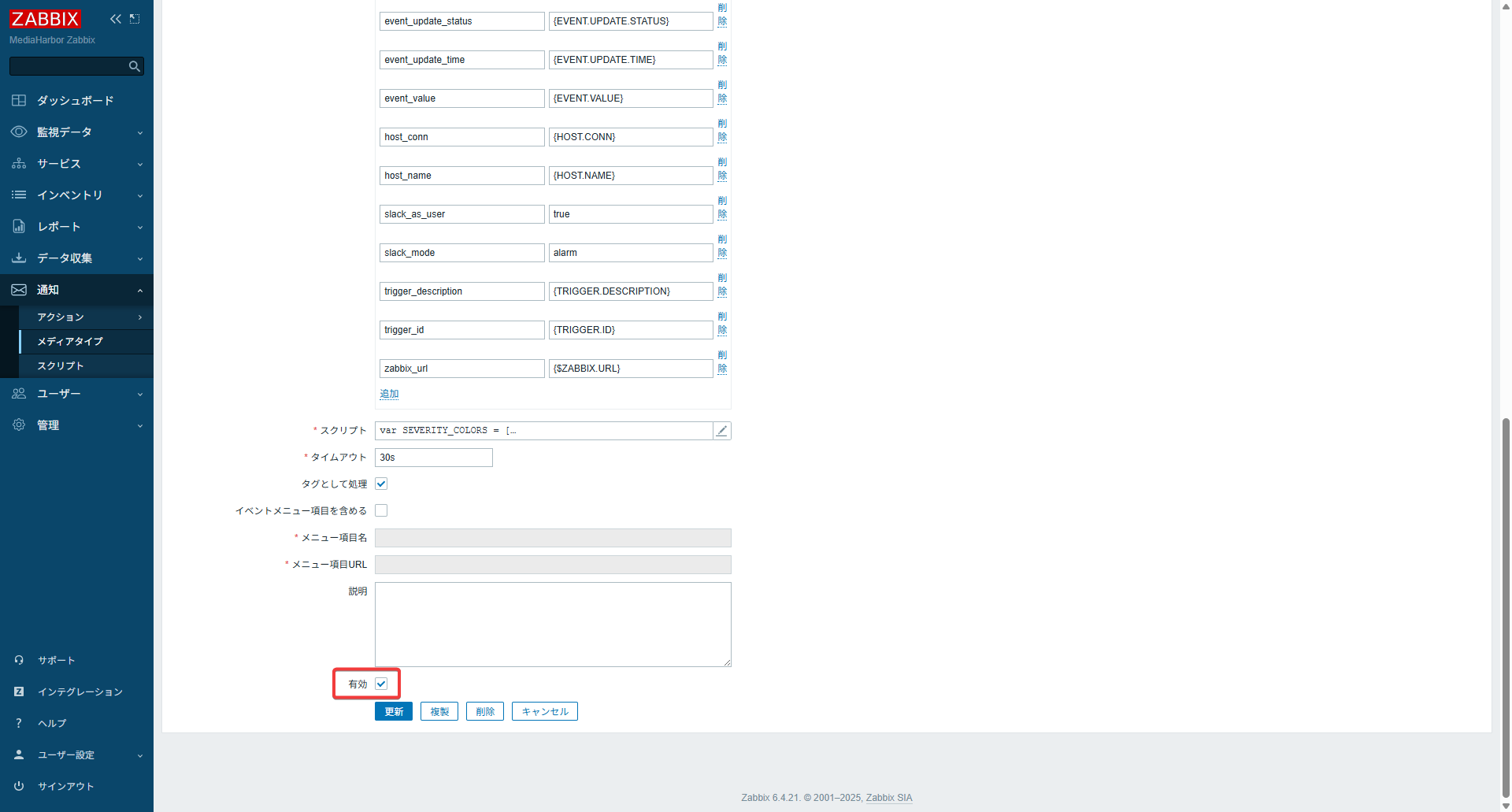
- Enabled: Check this option
5. User Settings
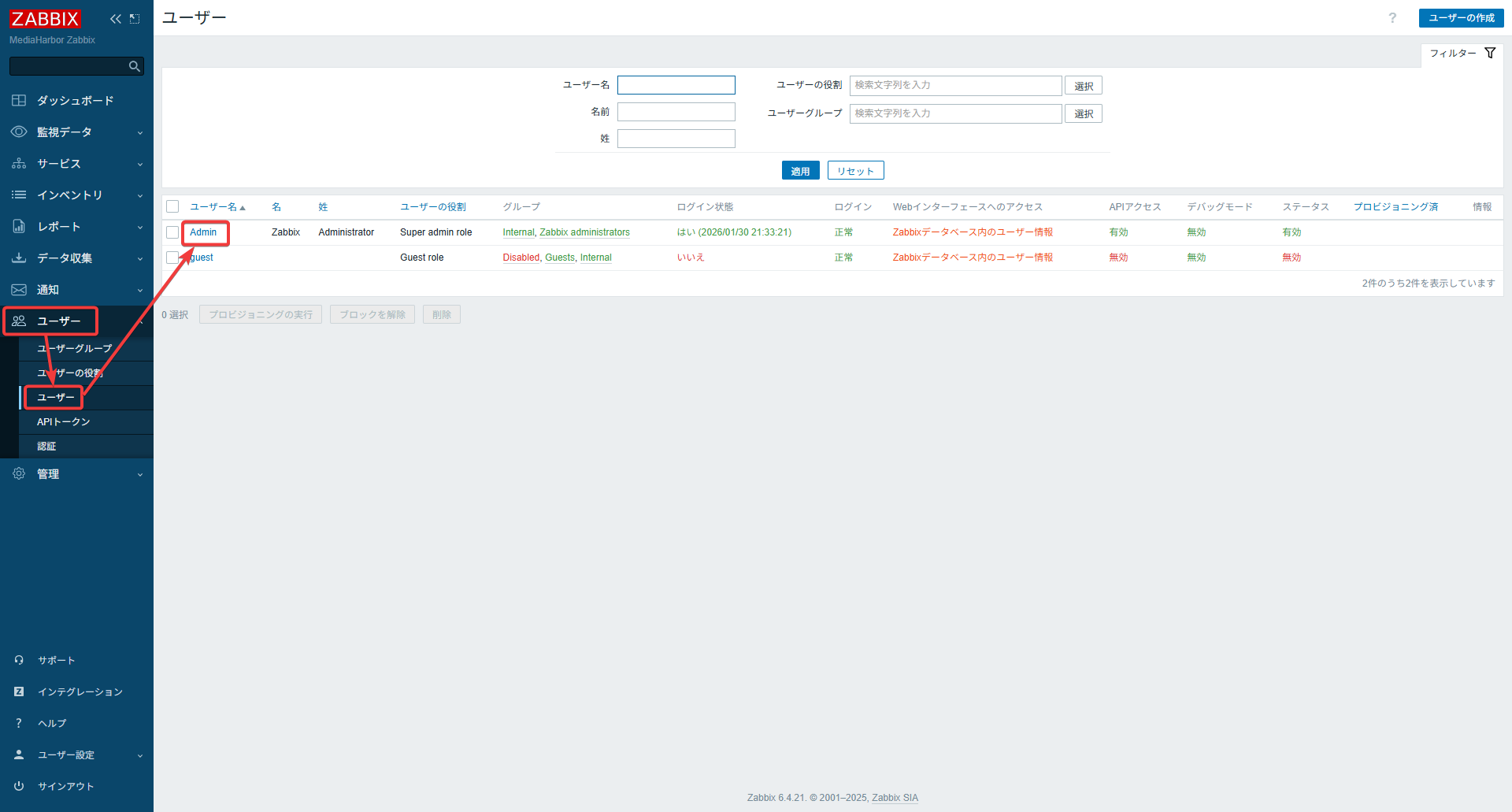
Go to Administration → Users → Admin
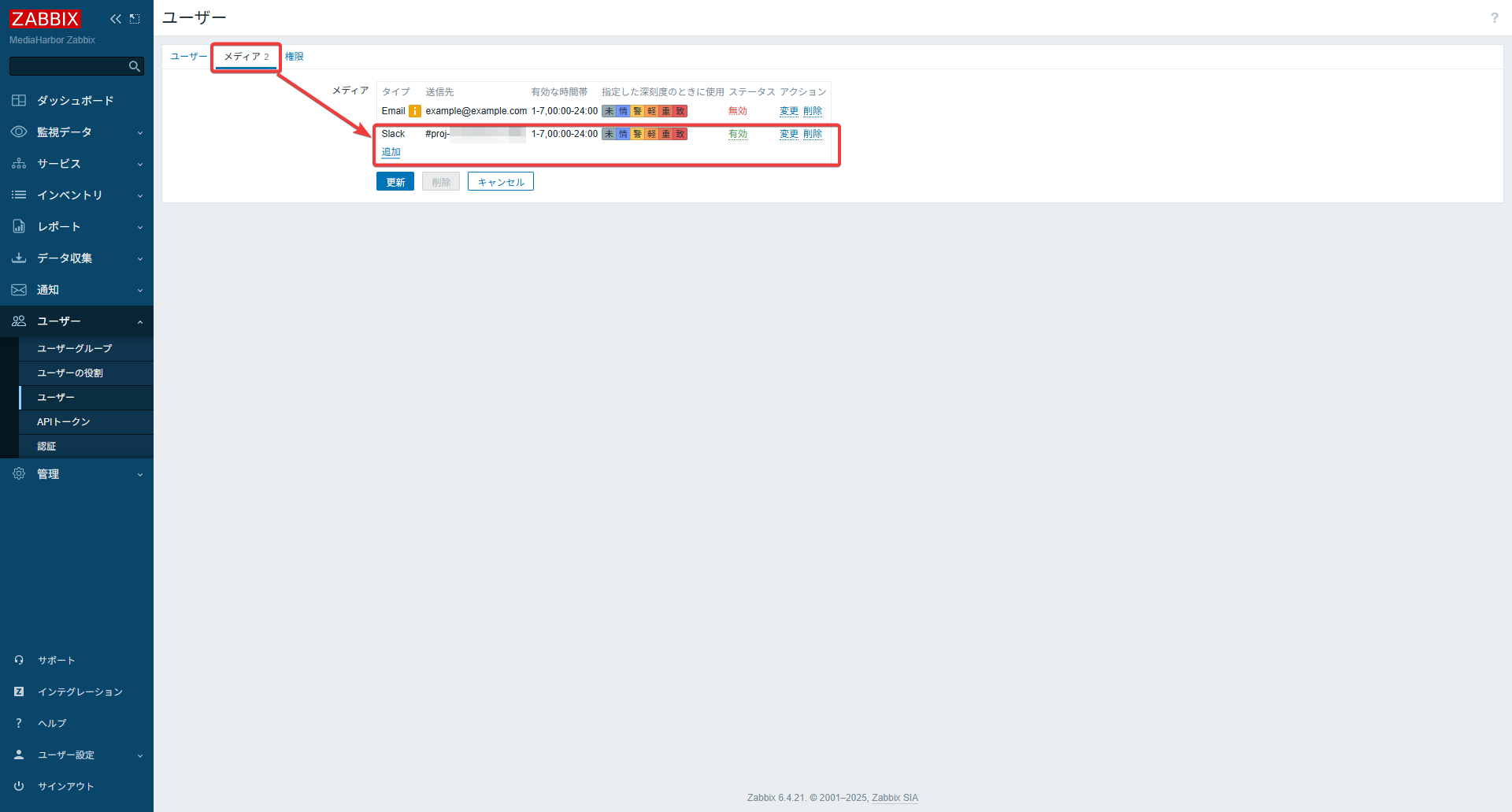
Open the Media tab and add Slack.
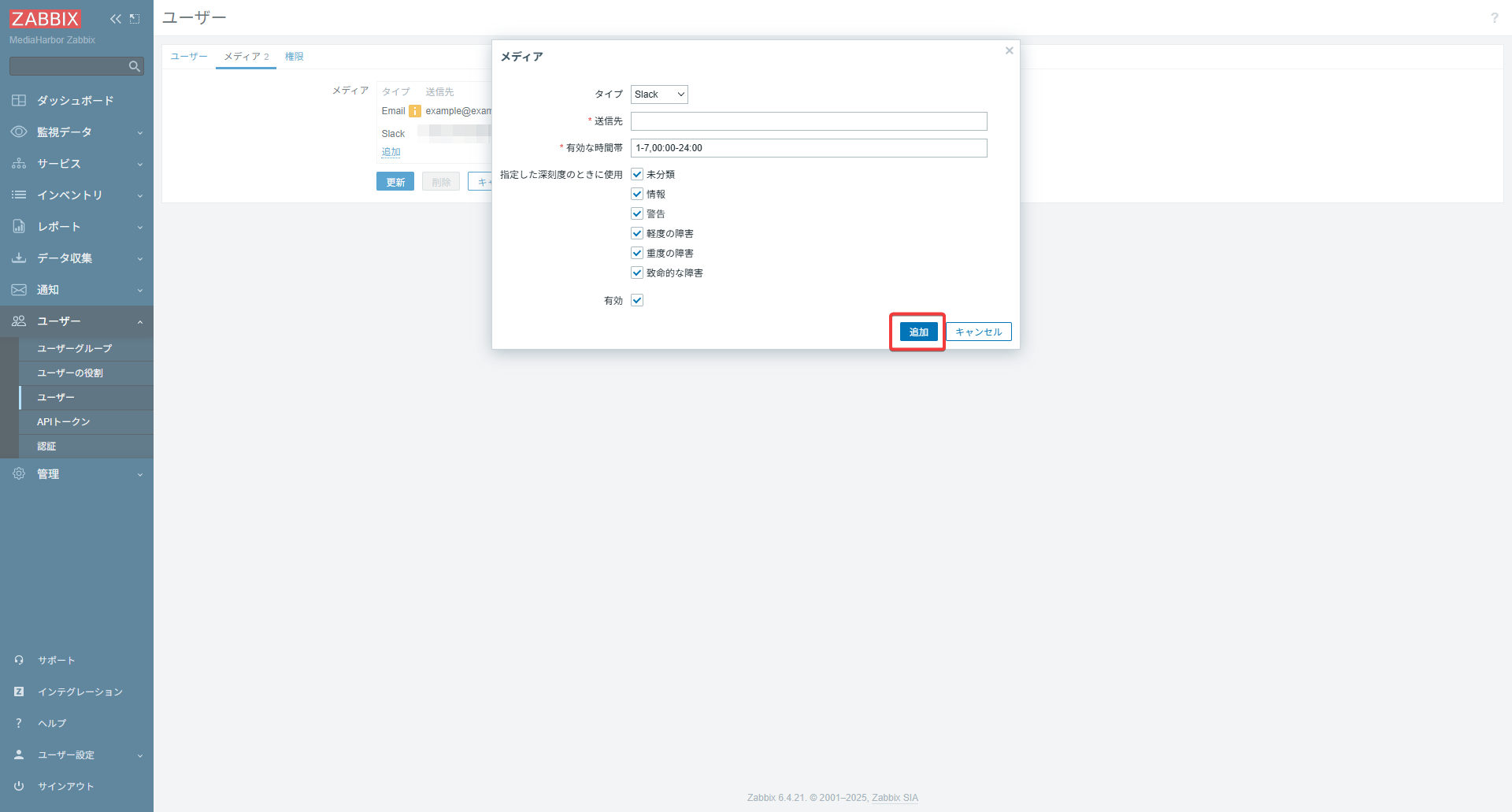
- Media type: Slack
- Send to: Leave blank
- Enabled: Check this option
6. Action Settings
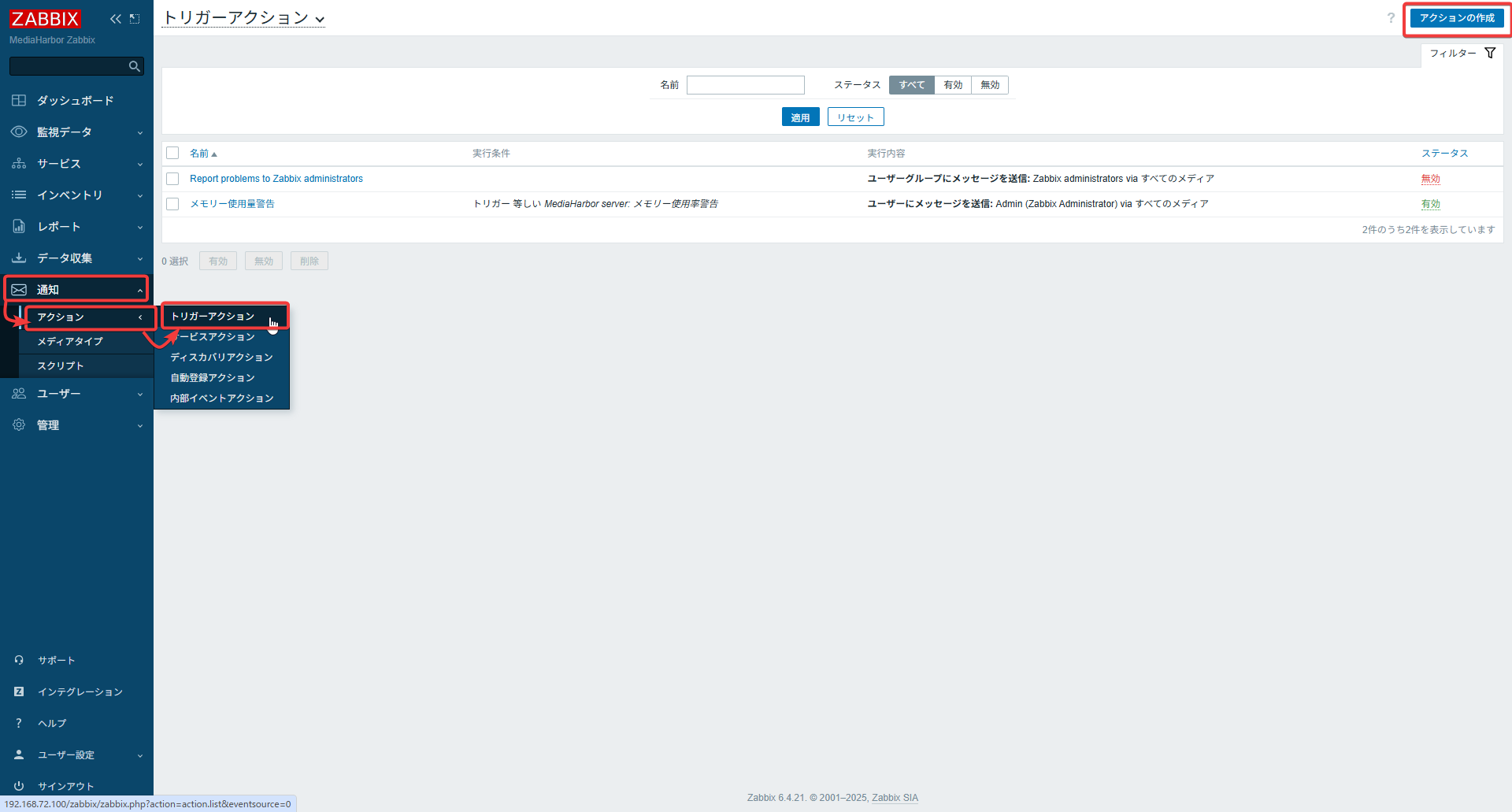
Go to Configuration → Actions → Trigger Actions
Click Create Action
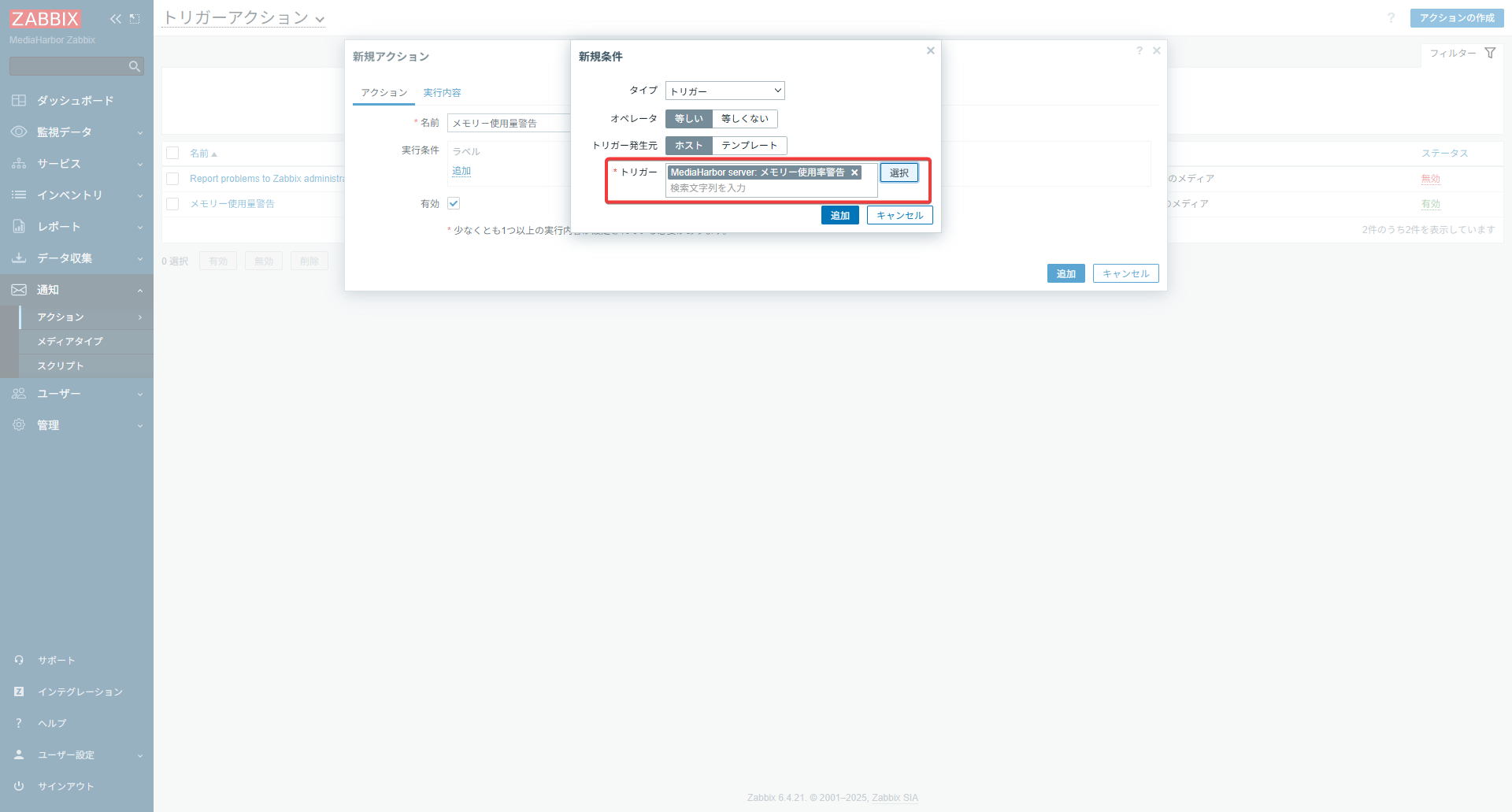
Set the action name and conditions.
Action Conditions
- Select the trigger you created in the earlier steps
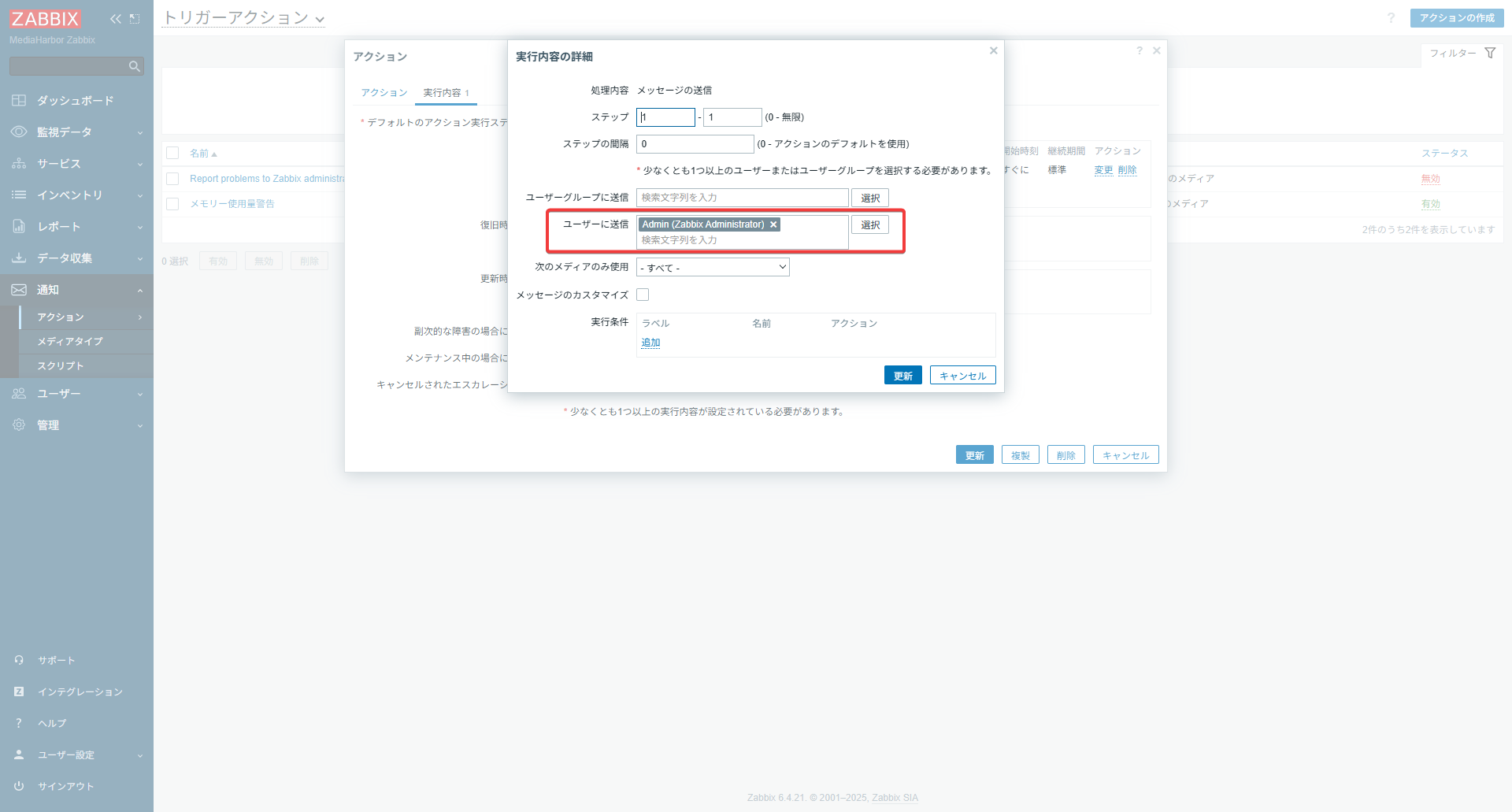
Operations
- Open the Operations tab
- Click the Add button under Operations
- Add “Admin” to the “Send to users” field
Notification Test Steps
- Temporarily lower the trigger threshold to 1%
- Wait a few minutes
- Confirm that a notification appears in Slack
- Restore the threshold to its original value
Example Notification