Installation Guide
📝 Installation Procedure
🔑 Obtaining the API Key
Log in to the License Management System
https://license.trafficsim.co.jp/
Note
A CastHive account is required to log in to the license management system.
If you do not have an account, please register using the CastHive Organization Registration page.
If you already have a CastHive account and would like to add LicenseManager, please contact us via the inquiry form or email.
Our support is available on weekdays between 9:00 AM and 6:00 PM (Japan time).
After confirming your request, we will issue your account or add the application as needed.
Please be aware that processing may take some time.
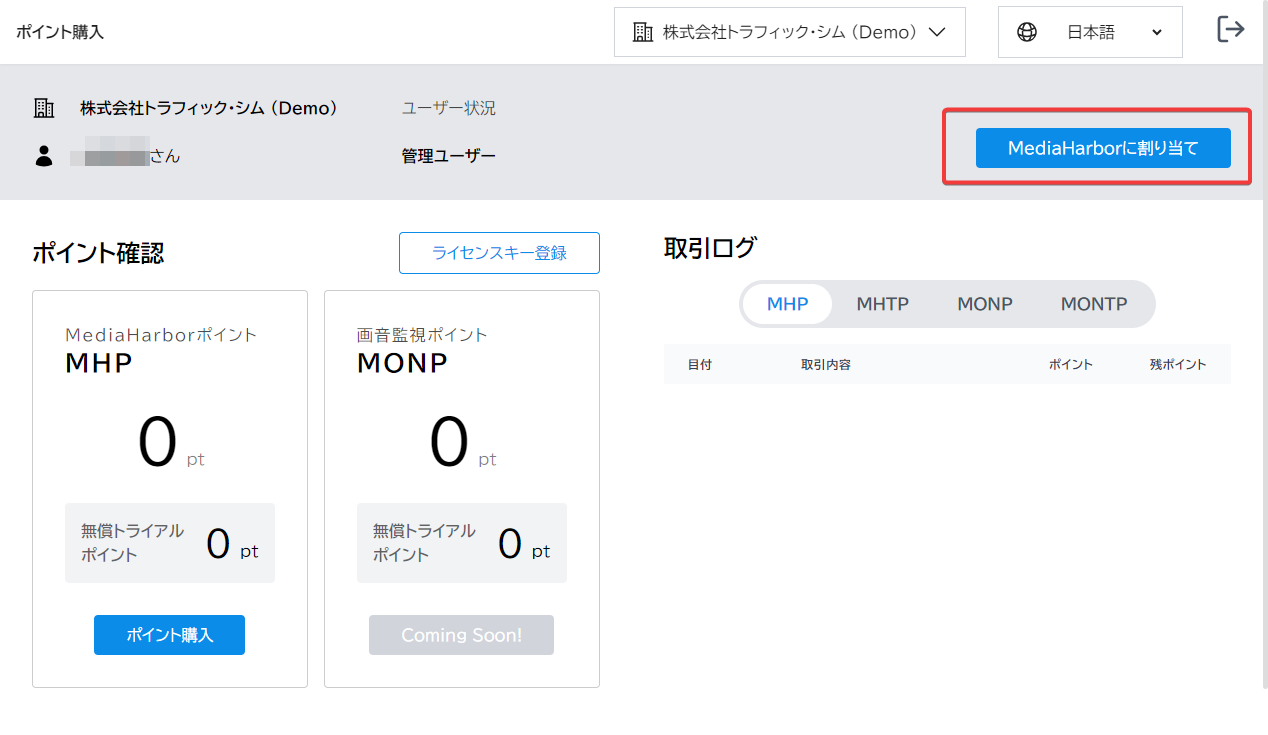
Open the MediaHarbor Management Screen
Click the “Connect MediaHarbor” button.
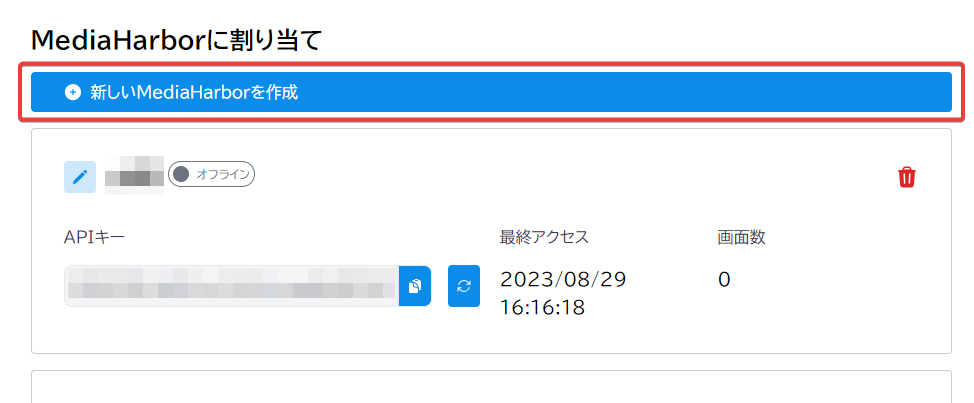
Create a New MediaHarbor API Key
Create a New MediaHarbor API Key Click the “Add New MediaHarbor” button.
Tip
Only the administrator user can perform this operation.
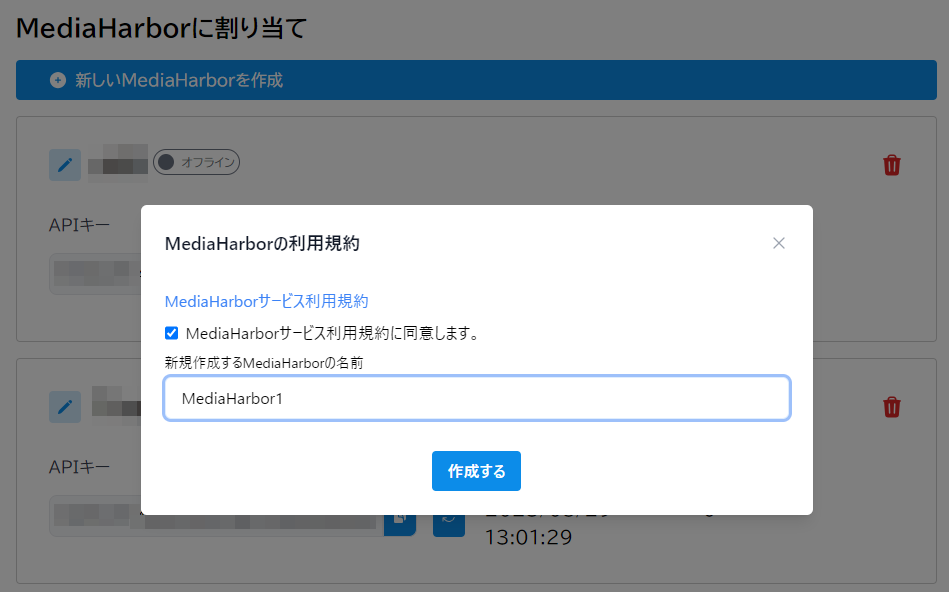
Review the terms and conditions. If you agree, check the “I Agree” box, enter New MediaHarbor Instance Name, and then click the “Create” button.
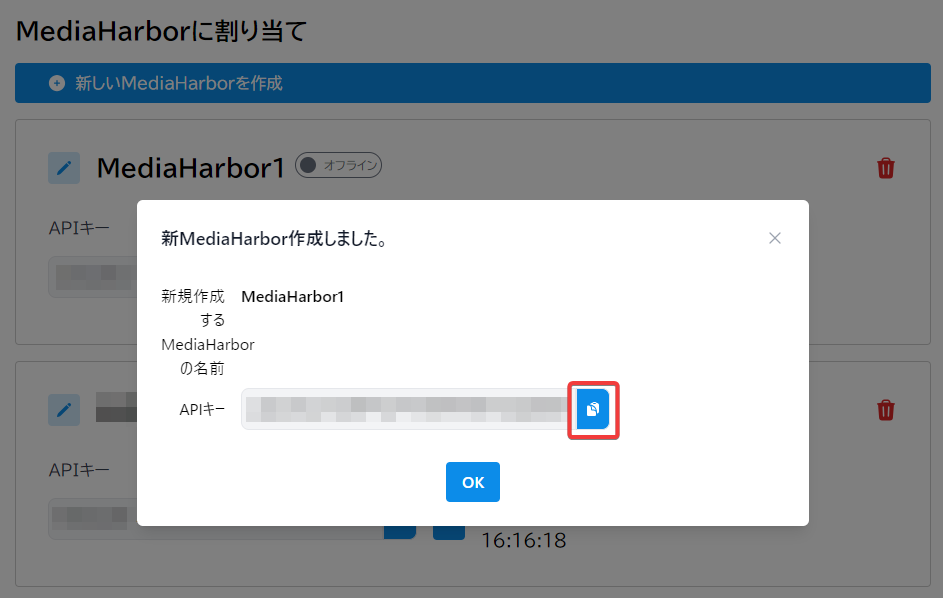
A new MediaHarbor API key will be generated. Please make sure to copy it.
Note
You can check the API key later as well.
It will be needed when you run the installer.
💿 Installation
Execute the following steps on the target Linux server.
Download the Installer Shell Script
Run the command below:
sudo curl -OL https://mediaharbor.trafficsim.co.jp/installer_en.sh
Grant Execution Permission to the Downloaded Shell Script
Run the command below:
sudo chmod +x installer_en.sh
Execute the Installer
Run the command below:
sudo ./installer_en.sh
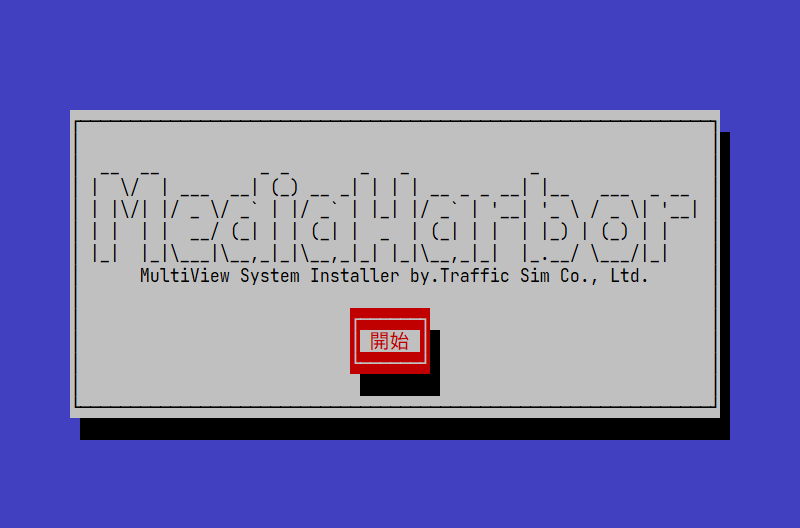
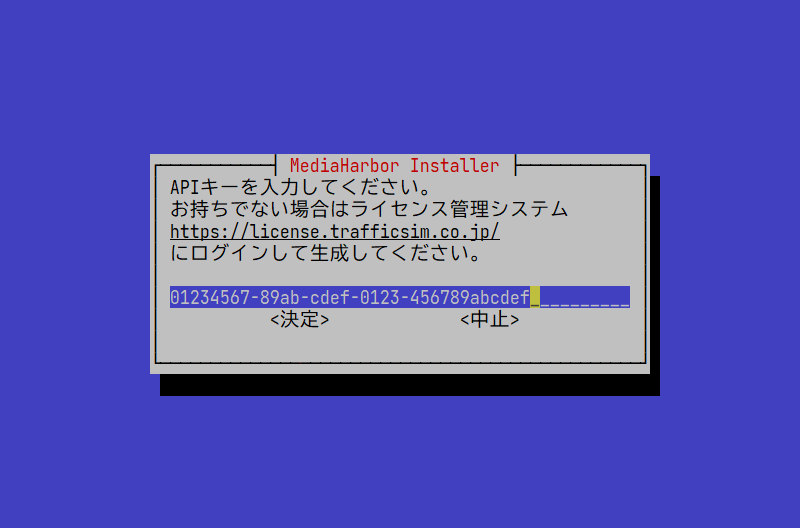
During the installation wizard, an API key input screen will appear.
Enter the API key you obtained in the previous steps.
Continue with the wizard to complete the installation.
💿 Offline Installation
If your server has limited internet connectivity, you can install MediaHarbor using pre-downloaded archives.
Please note: Internet connectivity is still required for license authentication in order to use MediaHarbor.
Download the Docker Image and Grafana Data Archives
If you have internet access on the target machine, run the following commands:
sudo curl -OL https://mediaharbor.trafficsim.co.jp/downloads/mediaharbor.tar.gz
sudo curl -OL https://mediaharbor.trafficsim.co.jp/downloads/grafana.tar.gz
If you do not have internet access, download the following files using another machine with internet access, then transfer them to your server:
Download the Offline Installer Shell Script
If your server has internet access, execute the following command:
sudo curl -OL https://mediaharbor.trafficsim.co.jp/installer_offline.sh
If your server does not have internet access, download the following file using another machine and transfer it to your server:
Folder Structure
Place the files in the following structure:
├── mediaharbor.tar.gz
├── grafana.tar.gz
└── installer_offline.sh
Grant Execution Permission to the Downloaded Shell Script
Run the following command:
sudo chmod +x installer_offline.sh
Run the Installer
Run the following command:
sudo -E ./installer_offline.sh
Troubleshooting
If you encounter any issues or have questions, please visit the Frequently Asked Questions page .